Build an AI Customer Support Agent with RAG + n8n
A customer asks your support bot a simple question about your refund policy. It gives a confident, plausible-sounding answer — that's completely wrong, because the bot has never actually read your refund policy. It's answering from general training data, not from your actual documentation.
This guide fixes that. You'll build a support agent in n8n that answers from your real docs — help articles, policy pages, past tickets, whatever you feed it — using RAG (retrieval-augmented generation). If you're not familiar with what RAG is or how it works under the hood, it's worth reading the conceptual explainer first — (link to be added once published) — but you don't strictly need it to follow along here.
What you'll have by the end
A working n8n workflow with two parts:
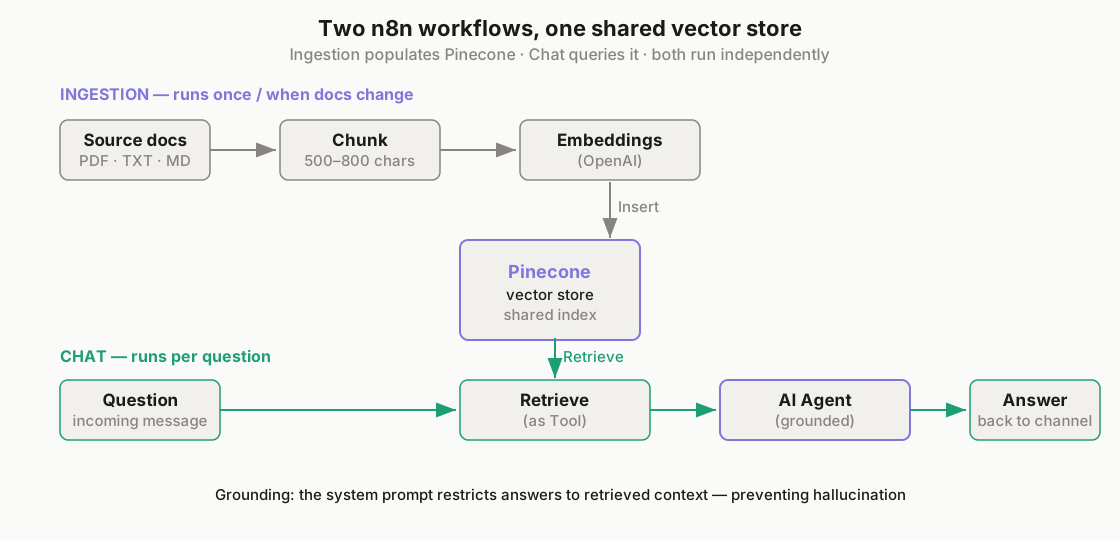
- An ingestion workflow that takes your documents, breaks them into chunks, and stores them in a searchable vector database
- A chat workflow that takes an incoming customer question, retrieves the most relevant chunks from that database, and generates an answer grounded in your actual content — instead of the model guessing
Once built, you can trigger the chat workflow from a website widget, Telegram, Slack, or anywhere n8n can receive a message.
Before you start
You'll need:
- n8n running — if you haven't set this up yet, this guide covers all three installation methods
- An OpenAI (or OpenRouter) API key for generating embeddings and chat responses
- A vector database account — this tutorial uses Pinecone because it has a generous free tier and a native n8n node, so there's no self-hosting involved. Qdrant and Supabase Vector are solid alternatives if you'd rather self-host
- A handful of real documents to test with — FAQ pages, policy docs, past ticket transcripts, anything customers actually ask about
If your API key or credentials aren't authenticating correctly at any point in this tutorial, this troubleshooting guide covers the most common causes.
Step 1: Build the ingestion workflow
This workflow only needs to run once (or whenever your documents change) — it loads your content into the vector database so it's ready to be searched later.
Nodes to add, in order:
- Manual Trigger — lets you run this workflow on demand while building and testing
- Read/Write Files from Disk (or HTTP Request, if pulling from a URL) — loads your source documents (PDF, TXT, or Markdown work well)
- Default Data Loader — extracts the raw text content from whatever file type you loaded
- Recursive Character Text Splitter — this is the "chunking" step from the RAG pipeline. Set Chunk Size to around 500–800 characters and Chunk Overlap to around 50–100. Smaller chunks retrieve more precisely; larger chunks preserve more context per chunk. Start here and adjust later based on results
- Embeddings (OpenAI) — converts each chunk into a vector.
text-embedding-3-smallis a good default — cheap and accurate enough for most support content - Pinecone Vector Store (set to Insert mode) — writes the chunks and their embeddings into your Pinecone index
Run this workflow once against your test documents. If it completes without errors, check your Pinecone dashboard — you should see vectors populating your index.
Step 2: Build the chat workflow
This is the part that actually answers customer questions in real time.
Nodes to add:
- Chat Trigger — n8n's built-in node for receiving chat messages. Use this while testing; swap it for a Webhook or Telegram Trigger node later when you're ready to connect a real channel
- Pinecone Vector Store (this time set to Retrieve mode, used as a Tool) — this is the retrieval step. It takes the incoming question, embeds it, and pulls back the most relevant chunks from the same index you built in Step 1
- AI Agent node — connect your chat model (e.g., GPT-4.1 or GPT-4o-mini) here, and attach the Pinecone retrieval node as a Tool the agent can call. In the system prompt, be explicit: "Answer only using the retrieved context. If the answer isn't in the retrieved content, say you don't know and offer to escalate to a human." This one instruction does most of the work in preventing hallucinated answers
- Respond to Chat — sends the generated answer back to whichever channel triggered the workflow
Connect the two workflows conceptually — Step 1 populates the database, Step 2 queries it — but they run independently. You only re-run ingestion when your source documents change.
Step 3: Test it
Ask it something that's genuinely covered in your source documents, and something that isn't.
- Covered question → you should get a specific, accurate answer that reflects your actual policy or content, not a generic AI answer
- Uncovered question → the agent should say it doesn't know, rather than making something up. If it's still guessing on uncovered questions, tighten the system prompt instruction from Step 2 and make sure the Pinecone retrieval node is actually wired in as a tool the agent uses, not just a node sitting unconnected in the canvas
Tuning: getting better answers
Two settings do most of the heavy lifting once the basic flow works:
- Chunk size (from Step 1) — if answers feel like they're missing context or cutting off mid-thought, increase chunk size. If answers feel bloated or slightly off-topic, decrease it
- Top-K retrieval count (set in the Pinecone Vector Store node) — this controls how many chunks get retrieved per question. Start at 3–5. Too low and the agent might miss the right chunk; too high and irrelevant chunks start diluting the answer — and each extra chunk adds a bit of latency, so if responses start feeling slow, this is one of the first places to check, alongside general troubleshooting for slow agents
Common issues
Agent still hallucinates on covered topics. Usually means retrieval isn't finding the right chunk — check chunk size and top-K first, then verify the source document actually contains the answer in a way that chunking didn't split awkwardly across two chunks.
Workflow runs but Pinecone index stays empty. Almost always a credential or index-name mismatch between the Insert and Retrieve nodes — double check both point to the same Pinecone index and namespace.
Answers are accurate but painfully slow. Reduce top-K, switch to a smaller/faster chat model for generation, or check whether the bottleneck is actually the embedding step rather than retrieval itself.
Everything works locally but breaks once deployed. If you're planning to keep this agent running continuously rather than testing on demand, running n8n on a VPS covers the deployment side of this.
Where to go from here
This gets you a working RAG-powered support agent answering from real content. Natural next steps: add a fallback that escalates unanswered questions to a human, connect it to your actual support channel instead of the test chat trigger, or extend the source documents to cover more of your knowledge base over time — the ingestion workflow from Step 1 can simply be re-run whenever you add new content.
If you'd rather build something similar for personal, private use — no cloud vector database, running entirely on your own machine — a Codex-based walkthrough of that version is coming soon. (Link to be added once published.)